Sunday, August 16, 2020

Wavetek 3001 signal generator repair

 Got this Wavetek 3001 signal generator just for testing the FM deviation meter since I haven't here my other signal generator and it was the cheaper unit that could generate a signal changing the deviation I could find in the usual online flea market.


Was expecting it to be fully working but unfortunately the listing  didn't matched the reality. Instead of sending it back I decided to try an fix it.
It was not giving any output and the indication meter for the output signal was not moving, also touching the back right panel where the power supply dissipation is, it was getting alarmingly hot after some seconds of power on. Testing the power lines for the + and negative 18V it was showing close to 0V... so either the supply was dead or there was a short. Because it was the two supply lines I suspected initially the output transistors of the supply.

 Looking at the service manual and some web resources was easy to see the 18V power supply lines in short or not working could be due the usual short electrolytic capacitors.

Two great resources I could find with a lot more information than this post are the following ones:

http://k5jxh.com/wave-tek/3006.html from K5JXH for the repair of a similar unit, a Wavetek 3006

and:

http://users.monash.edu.au/~ralphk/wavetek.html by Ralph Llimek on a repair of also a similar unit, Wavetek 3000

In my repair the only hard part was to find which module is the one at fault, if not multiple. That was my approach because looking at the power supply I could not find any fault (top right part vertical PCB).


My approach was to removed 5 random ones and see. I choose the first 5 on the bottom from left to right. What I did also was to put labels on all the cables for future reference although after unbolting them and turning the box upside down they started to fall with the cabling attached, saving me some time. I was lucky the first time, with 5 modules removed it was back to life, that is, there was no longer a short on the power supply and the output metter moved, then I installed one after the other until find the culprit, it was module M29-2, see bellow.


The modules are easy to remove from the chassis, just unbolt the bottom screen and pull them from the top side.

Inside the module I could see a previous repair had been done on one of the supply lines capacitor because of the two different type, a more modern black on the right and the original one on the left. You can see also the small choke in series to the supply lines, positive and negative.


After measuring, it was confirmed as a plain short, so it was removed and replaced (not the same value but works anyhow):


 In the mean time I bough some more spares for future replacement.

I suspect it's also developing and issue on the 400Hz audio oscillator part, 1Khz is good but that will be for another day. Here's the two oscillators schematic in question:


Have a good day!


Sunday, June 21, 2020

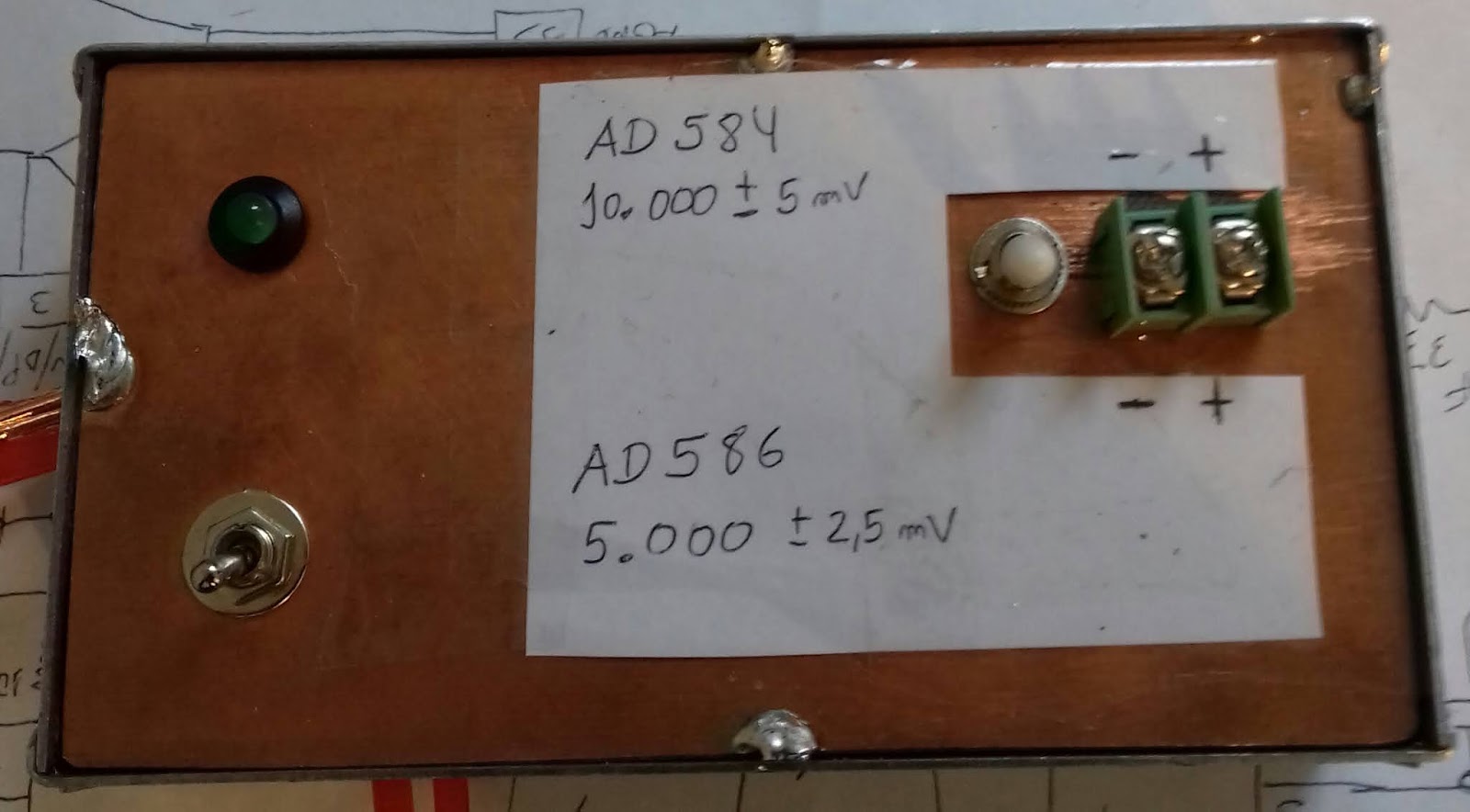
AD584 and AD586 modules boxed for multimeter check/calibration


Nothing major here, just boxing some kit's/modules with AD584 and AD586 voltage references, enough for quick check of multimeters or any project needing a voltage reference.


The AD586 is a fixed 5V output wiht +/- 2.5mv of accuracy and the AD584 set to 10V with possibility of being change to 7.5, 5 and 2.5V with 5mv accuracy.


Connections are self explanatory, anyhow here's the AD586 with the metal lid covering the IC lifted:


And now the box calibrating the Range RE890G multimeter on the Volt range.
Itwas a guess work to find the correct trimmer since I could not get the tech manual for this multimeter:


Here assembled view from an older picture:
Checking another multimeter and my homemade milivoltmeter:


..more digits now:
...enough for most of the electronic work done around here.


....


Have a great day!


Sunday, June 07, 2020

GPIB - Marconi 6960A power meter

Another one for the GPIB series on instrument control from Linux, this one for the Marconi 6960A RF power meter.


The output on the screen (guess the power was lower than on the first picture):


Together with the milivoltmeter (and launch icons) getting data for recording, the milivoltmeter software/hardware is for another post and it's not GPIB, it's rs232.


Code:
My instrument is set on GPIB id 8 so you might need to change to reflect yours:
(inst = rm.open_resource('GPIB0::8::INSTR'))


=== code start
import Tkinter as tk
import pyvisa
import time

rm = pyvisa.ResourceManager()
inst = rm.open_resource('GPIB0::8::INSTR')

counter = 0
def counter_label(label):
  def count():
    global counter
    counter += 1
#   power=inst.query("SR3SR-TR10SQ1")
    power=inst.query("TR00")
    power=power[3:] # renove the first 3 characters
    power=float(power)
    label.config(text=str(power)+" dBm")
    label.after(1000, count)
  count()

root = tk.Tk()
root.title("   RF power 6960A    ")
label = tk.Label(root, fg="light green", bg ="dark green", font = "Helvetica 18 bold italic")
label.pack()
counter_label(label)
button = tk.Button(root, text=' EXIT ', width=35, command=root.destroy)
button.pack()
root.mainloop()


=== code end


Have fun!

Saturday, May 30, 2020

GPIB - HP 3478A multimeter

Another post for the GPIB series for an HP 3478 multimeter.


First code is how to display a string and then how to do a voltage readout.


Here's the code:

=== code begin

 #!/usr/bin/python
import time
import pyvisa
import sys

rm = pyvisa.ResourceManager()
inst = rm.open_resource('GPIB0::20::INSTR')


line = []
def count(instrument):

 output=inst.query("D2 CT2GQV")

 print "Set display to: CT2GQV",
# print output,

count(1)

=== code end

And the result:


If you want to read voltage (GPIB "F1" function) use the following code as example (no screenshot but similar to the code from previous posts series on GPIB), one version with graphical interface and another further bellow just from command line:

=== code start (graphical interface)
 #!/usr/bin/python
import Tkinter as tk
import pyvisa
import time

rm = pyvisa.ResourceManager()
# GPIB ID of my instrument is "20"
inst = rm.open_resource('GPIB0::20::INSTR')

counter = 0
def counter_label(label):
  def count():
    global counter
    counter += 1
    dcvolts=inst.query("F1")
    label.config(text=dcvolts+"V")
    label.after(1000, count)
  count()

root = tk.Tk()
root.title("HP 3478A DC Volts")
label = tk.Label(root, fg="light green", bg ="dark green", font = "Helvetica 18 bold italic")
label.pack()
counter_label(label)
button = tk.Button(root, text=' EXIT ', width=45, command=root.destroy)
button.pack()
root.mainloop()

=== code end

=== code start (read from command line)
#!/usr/bin/python
import time
import pyvisa
import sys

rm = pyvisa.ResourceManager()
inst = rm.open_resource('GPIB0::20::INSTR')


line = []
def count(instrument):

 output=inst.query("F1")

 print "DC Volts:",
 print output,

count(1)
=== code end

The multimeter inside look's like this:


Have a nice day!


Friday, May 15, 2020

World smallest spectrum analyzer


I think it's the smallest for sure. In regards to the spectrum analyzer, let's say it's more a band-scope...

Is it practical? No, it's just for fun since I have never seen a conversion of a Handycam CCD-F370E crt viewfinder into a spectrum analyzer, I've seen only simple oscilloscopes and small TV screens but never a total use of the two deflection coils in separate from the main viewfinder circuit.


 The only part left in place for the crt viewfinder was the beam/HV side, the two coils for the deflection were disconnected and connected to the circuit bellow:

In fact the hardest part was to find the correct settings for the yoke coils.
 Didn't included in the diagram is the RF part. For testing I used a normal receiver circuit and the signal level is taken from the audio and not trough a real logarithmic power meter. The vco was a simple varicap driven oscillator and feed with the sweep ramp signal, no blanking was used.

The video:


Here's during testing with a wide "video bandwidth" :


The beep/eared, and seen, is the Arduino VNA sweeping trough the band and the audio is from the receiver used as fronted.

The normal mess for the prototype, bellow the circuit with the sweep, vertical and horizontal yoke coil drivers:

Keep in mind that if you duplicate the circuit do swap the driver 2n3904/6 transistors with more powerful ones since they will get hot fast.

Out of curiosity I just realized that I disassemble this mini crt in 2012 and it had been getting dust to this day.

Have a nice day!


Monday, May 11, 2020

GPIB - Agilent/HP 6621A

A new one for the "software" pile, using GPIB, Linux and Python.

In the past I placed some example on how to control the outputs of the Agilent/HP 6621A using the Arduino USB to GPIB converter, now, using a "proper" GPIB board to get the current delivered on the two outputs in graphical form and from the command line to set the same outputs.


The code output, along with the startup icon on the background, bellow; "1" is the current of output one and "2" is for output #2:

...not much going around at the time of the display.

Since the voltage will not change in most of the testings I do I didn't included the set voltage, anyhow I have an external meter better suited for easy reading than the LCD on the equipment. The meter also includes output jacks extended from the back of the PSU unit.

The panel meter used was a "conversion" of a 0 to 250VAC type to 0 to 25VDC in this post.

The Code to display the output current (every 1s):

=== code start gpsu.py

#!/usr/bin/python
import Tkinter as tk
import pyvisa
import time

rm = pyvisa.ResourceManager()
inst = rm.open_resource('GPIB0::1::INSTR')

counter = 0
def counter_label(label):
  def count():
    global counter
    counter += 1
    current1=inst.query("IOUT?1")
    current2=inst.query("IOUT?2")
    label.config(text="1:"+current1+"2:"+current2)
    label.after(1000, count)
  count()

root = tk.Tk()
root.title("Agilent 6621A - Iout")
label = tk.Label(root, fg="light green", bg ="dark green", font = "Helvetica 18 bold italic")
label.pack()
counter_label(label)
button = tk.Button(root, text=' EXIT ', width=45, command=root.destroy)
button.pack()
root.mainloop()

=== code end gpsu.py


If you need to set output on the PSU from command prompt you can use this one bellow (setoutput.py):

=== code start setoutput.py

#!/usr/bin/python
# sets output 1 or 2 from Agilent 6621A power supply via gpib
# needs pyvisa
import time
import pyvisa
import sys

rm = pyvisa.ResourceManager()
# gpib card 0 address 1, change to your instrument address
inst = rm.open_resource('GPIB0::1::INSTR')

if len(sys.argv) == 3:
 print("Setting: ")
 print "Output #",
 print sys.argv[1],
 print "to ",
 print sys.argv[2],
 print " V"

 if sys.argv[1] == "1": # setting output number 1
  inst.query("VSET1,"+sys.argv[2])
  print("..done!")

 if sys.argv[1] == "2": # setting output number 2
  inst.query("VSET2,"+sys.argv[2])
  print("..done!")


# number of args not given currectly
else:
 print("")
 print("Not enough arguments")
 print("")
 print("setoutput.py ")
 print("")
 print("ex: setoutput.py 1 5.00")

# voltage2=inst.query("VOUT?2")
# current1=inst.query("IOUT?1")
# current2=inst.query("IOUT?2")

=== code end setoutput.py

To get all (current and voltage) from the PSU use the following code (getoutput.py):

(previous screenshot showing the output 1 and 2 voltages being set and the collected the current values along with the current)

=== code start getoutput.py

#!/usr/bin/python
# sets output 1 or 2 from Agilent 6621A power supply via gpib
# needs pyvisa
import time
import pyvisa
import sys

rm = pyvisa.ResourceManager()
# gpib card 0 address 1, change to your instrument address
inst = rm.open_resource('GPIB0::1::INSTR')

if len(sys.argv) == 3:
 print("Setting: ")
 print "Output #",
 print sys.argv[1],
 print "to ",
 print sys.argv[2],
 print " V"

 if sys.argv[1] == "1": # setting output number 1
  inst.query("VSET1,"+sys.argv[2])
  print("..done!")

 if sys.argv[1] == "2": # setting output number 2
  inst.query("VSET2,"+sys.argv[2])
  print("..done!")


# number of args not given currectly
else:
 print("")
 print("Not enough arguments")
 print("")
 print("setoutput.py ")
 print("")
 print("ex: setoutput.py 1 5.00")

# voltage2=inst.query("VOUT?2")
# current1=inst.query("IOUT?1")
# current2=inst.query("IOUT?2")

=== code end getoutput.py


Hope you find it useful.

Have a nice day!


Saturday, May 09, 2020

GPIB - HP 5316B Frequency Counter

Nothing fancy, here, just a way of getting a Linux python graphical interface for the output value of the HP5316B frequency counter on the GPIB interface.

Bellow example of code output/"display". Basic use will be video insertion during troubleshooting/recording and/or automated measurement.


The HP5316B frequency counter during testing of the Si5351 GPS disciplined oscillator with a NEO7M module from this post.


The icon on the desktop along with other projects for GPIB or serial interface data collection:


The ICS 4896 GPIB to serial converter (right icon) was describe on the previous post. The other ones to follow.


The Python code:

==== code start fcounter.py

import Tkinter as tk
import pyvisa
import time

rm = pyvisa.ResourceManager()
inst = rm.open_resource('GPIB0::3::INSTR')

counter = 0
def counter_label(label):
  def count():
    global counter
    counter += 1
    inst.write("FN1")
    result=inst.read_bytes(19, break_on_termchar='\r\n')
    result=result[2:] # renove the first 2 characters
    result=float(result)
    label.config(text=str(result)+" hz")
    label.after(2000, count)
  count()

root = tk.Tk()
root.title("   HP 5316B counter    ")
label = tk.Label(root, fg="light green", bg ="dark green", font = "Helvetica 18 bold italic")
label.pack()
counter_label(label)
button = tk.Button(root, text=' EXIT ', width=35, command=root.destroy)
button.pack()
root.mainloop(

==== end code fcounter.py

You will need to set the GPIB address for your instrument on the following line:
inst = rm.open_resource('GPIB0::3::INSTR')
In my case it's address "3".

If you are using Linux Mint the desktop icon/launcher code this bellow. You need do adapt to your specific directories.

==== launcher

[Desktop Entry]
Name=HP5316B
Exec=python /home/rmartins/soft/fcounter/fcounter.py
Comment=
Terminal=false
Icon=/home/rmartins/soft/fcounter/th.jpeg
Type=Application

==== end launcher


Have a great day!